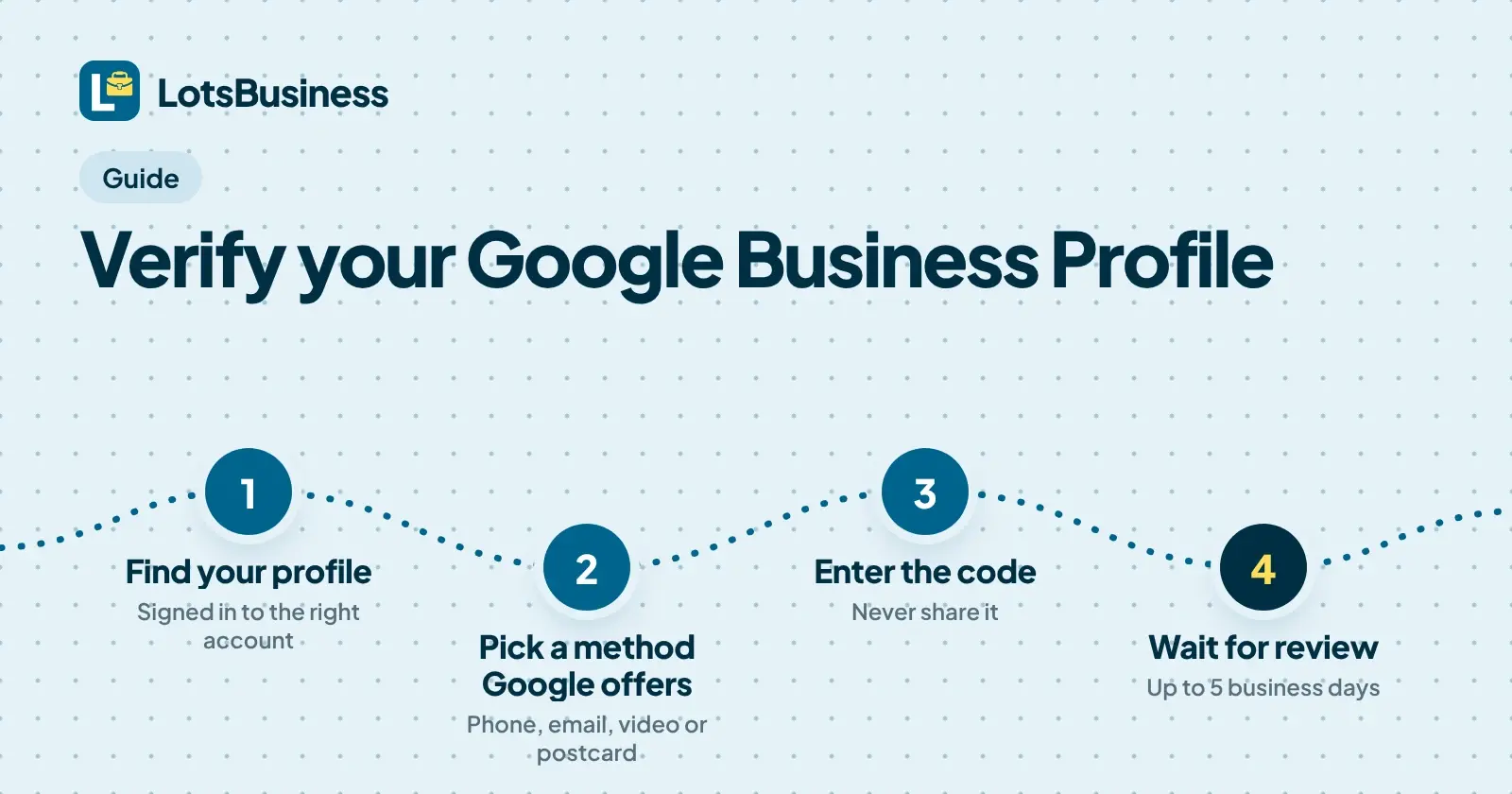
Google decides which verification methods you get, and you can't change them. Open your Business Profile, select Get verified, and Google shows the options available for that business: phone or text, email, a live video call, a video recording, or a postcard. Pick one, enter the code or finish the video, then wait up to 5 business days for Google's review. I'm the founder of LotsBusiness, and below is every method Google's own help pages describe, what each one needs, and what to do when verification doesn't go through.
Checked on 14 November 2026 against Google's Business Profile Help pages (links in the Sources section at the end). Google changes which methods it offers, so treat the screen in your own profile as the final word.
What verification gives you
Google says you need to verify your business to edit business info such as the name or hours and to interact with customers. Verifying means you gain ownership of your Business Profile. Adding or claiming a profile costs nothing.
Before you start
- A Google Account. You need one to sign up for a Business Profile. It can be a new account with a Gmail address or your preferred email address, or an existing account with any email address.
- The right account. To find your profile you must be signed in to the Google Account associated with it. Search for your business name and city, or search "my business".
- A profile to verify. If your business isn't on Google yet, add it at business.google.com/add and pick a verification option when asked. If an unverified profile already exists, open Google Maps, search for the business name and city, and select Claim this business, then Manage now. In the Maps app it's under About.
- A correct address. Google asks you to make sure your business address is correct and meets its address guidelines.
Every verification method Google describes
Google says the options available to you depend on your business type, public info, region or business hours. In some cases you may need more than one method. If your business is eligible for video verification, Google recommends it.
| Method | Where you start | What to know |
|---|---|---|
| Phone or text | Get verified, then Phone or SMS | You must be able to answer the business phone or receive texts. Automated phone menus (IVR) won't get the code. |
| Get verified, then Email | You must be able to open the email address on the verification screen. | |
| Live video call | Get verified, then Live video call | Only within your location's business hours, and you must be at the business. Not available for every business. |
| Video recording | Get verified, then Business video, on a mobile device | Recorded live, unedited, at least 30 seconds, uploaded from your phone. |
| Postcard | Get verified, then Postcard | Not available for every business. Most codes arrive within 14 days and expire after 30. |
Phone or text
Select Get verified, then Phone or SMS, answer the call or open the text, and enter the code in your profile. The one trap Google calls out: an Interactive Voice Response system can't receive the code, so if your business line is a menu ("press 1 for sales"), pick another method or reach the phone directly.
Select Get verified, then Email, and follow the steps in the email. Google's note is to make sure you can use the email address shown on the verification screen.
Live video call
Google says live video verification may not be available for every business, and calls only run within your location's business hours. You need a device that supports live video calls, and you need to be at your business, ready to show three things:
- Your location: outside signs, nearby businesses or a street sign that confirms where you are.
- Your business or equipment: products, branded equipment, marketing materials or tools you use to serve customers.
- Proof you manage the business: access to employee-only areas or items such as a cash register, kitchen or storage room, or non-sensitive business documents. You can also use your keys to open your facility.
Then go to Get verified, Live video call, Next, choose your language and select Start call. That starts a text chat with a support representative, who helps you join the video call.
Video recording
Google's video verification page covers storefront, service-area and hybrid businesses. The recording must be:
- unedited, unique and complete, with no breaks;
- at least 30 seconds long;
- captured live (pre-recorded videos aren't allowed, and you can't record offline and upload later);
- recorded and uploaded from a mobile device through your Business Profile.
It must not include sensitive info such as bank account, tax or ID numbers, private info about you or others, or other people's faces. What to show depends on your business type:
| Business type | Show your location | Show the business exists | Show you manage it |
|---|---|---|---|
| Storefront or hybrid | Street signs, building numbers, nearby businesses | Storefront, showroom or signage with the business name on a permanent fixture, matching your profile | Something only an employee can access, such as a cash register, kitchen, storage room or point-of-sale system |
| Service-area | Street signs or landmarks at your business address | Tools, equipment, products, business cards or branded apparel | Performing a service, or unlocking a branded van; a business permit, invoice or utility bill matching your profile name also works |
On your phone, open your Business Profile, tap Get verified, then Business video, read the requirements, and tap Start recording. Review the video, re-record with Try again if needed, then tap Upload video. Google reviews it in up to 5 business days. If it's rejected, tap Review issues, read the reasons (for example, the business name not visible on the storefront), and record a new video that includes everything from the first one plus what was missing. You can delete the video later under Advanced settings, Video uploads.
Google also says an online-only business, such as an e-commerce shop with a virtual storefront and no in-person services, isn't eligible for a Business Profile and can't be verified.
Postcard
Select Get verified, then Postcard, confirm the mailing address is correct and request the code. Then:
- Don't edit the business name, address or category on your profile. If you do, the code that was sent won't work.
- Don't request a new code. Google invalidates the code in the mail and sends a new one, which can make the process longer.
- When the card arrives, go to your profile, type the 5-digit code in the Code field and select Submit. Codes expire after 30 days.
Google also says to keep the code secure: Google will never ask for it, and you shouldn't share it with anyone, even people who manage your Business Profile.
The two cases where verification can be instant
After you finish the steps, Google reviews what you provided, and that review takes up to 5 business days (on rare occasions longer). Google says it sometimes verifies a profile instantly:
- when you verify your website with Google Search Console, or
- when you use bulk verification.
Bulk verification is for 10 or more locations of the same business. Google's page says agencies with more than one business in one account can't bulk verify, and service-area businesses aren't covered, so a single business or a client of an agency goes through the normal methods above.
When verification succeeds, you get a confirmation email. If a third party helps manage the profile, add them after verification as an owner or manager.
If verification doesn't work
- The Get verified button comes back. Google couldn't completely verify the business. Try again, or try another method if your profile shows several.
- A "Review issues" notice after a video. Your video wasn't accepted. Select Review issues and follow the on-screen instructions.
- Google asks for more info. This is likely because business details were recently updated. Select Get verified and verify again.
- Someone else already verified the profile. Go to business.google.com/add, enter the name and address, choose the business, select Request Access and fill in the form. The current owner is emailed and has 3 days to respond. With no response after 3 days you may be able to claim the profile, though Google says that option isn't always available.
- Google marks it as a duplicate. A profile considered a duplicate won't show on Google Search or Maps. Google lists reasons such as an existing verified profile for the same business or the same address on multiple profiles.
- Nothing helps. Google points you to contact support from the verification screen.
Doing it from LotsBusiness
Everything above happens on Google's side, and Google runs the verification. Here is what the LotsBusiness docs say about the Google part, and nothing more:
- On a business's Google tab you connect your Google account, then either link a Business Profile you already manage or create one step by step. Google runs its own verification and decides when the profile shows.
- LotsBusiness asks Google which verification methods are currently eligible and starts one of the methods Google returned. It doesn't pick a method or a delivery destination Google didn't return. The API docs list SMS, PHONE_CALL, EMAIL, ADDRESS (the Google postcard) and VETTED_PARTNER as examples of methods.
- When the owner receives a PIN for a pending verification, it's submitted back to Google from LotsBusiness. The assistant never guesses a PIN.
- For a service-area business, a private verification address can be supplied for Google's verification only. It's never copied to the public listing.
- If the business already has a profile, you link it instead of creating a duplicate. The connected Google account must be an owner or manager of that profile on Google.
- Website settings accept search-engine verification codes, Google's among them.
- Creation is guided: you see the exact details before anything is created, and nothing promises a verification outcome or date.
Google profile creation is part of a paid business. A plan starts at $10 a month billed yearly ($120 a year), or $19 billed monthly for one business. You can do all of it in the dashboard, or ask your AI assistant to run the same steps through LotsBusiness. There's more on who owns the profile after setup in Handing a Google Business Profile to Your Client.
For agencies
Google's page says only business owners or authorized representatives may verify a business, and that the code shouldn't be shared with anyone, even people who manage the profile. So the cleanest setup is that the owner receives and enters the code, and then adds you as a manager. The full add-a-business flow, from search to verification to adding managers, is in How to Get a Business on Google Maps.
After you're verified
Once the profile is verified you can post updates, offers and events, which is covered in How to Post on Google Business Profile. If your website is a separate question, Do I Need a Website if I Have a Google Business Profile? covers it.
FAQ
How long does Google Business Profile verification take?
Google says verification reviews take up to 5 business days after you complete the steps, and on rare occasions longer. A postcard code usually arrives within 14 days. Some profiles are verified instantly, for example when you verify your website with Google Search Console.
Can I choose which verification method I get?
No. Google says verification methods are automatically determined by Google and can't be changed. The options depend on your business type, public info, region or business hours, and some businesses need more than one method.
Why is there no postcard or video option on my profile?
Google says postcard verification isn't available for all businesses, and live video verification may not be available for all businesses either. Try the options your profile shows, and contact support if you still can't verify.
Can I request a new postcard code?
You can, but Google advises against it. Requesting a new code invalidates the code in the mail and sends a new one, which can make the process longer. Also don't edit your business name, address or category while you wait, or the code won't work.
Can an agency verify a client's business?
Google says only business owners or authorized representatives may verify a business, and the verification code shouldn't be shared, even with people who manage the profile. The usual setup is that the owner verifies, then adds the agency as a manager.
Sources (Google pages, checked on 14 November 2026)
- Verify your business on Google
- Verify your business with a video recording
- Add or claim your Business Profile
- Verify Business Profiles in bulk
- Request ownership of a Business Profile
- Resolve duplicate profiles and ownership issues
- LotsBusiness: help, skill.md, tools.json, checked on 14 November 2026.